


How to Configure Pada 4.1 and PadaKosha on Ubuntu Linux Desktop:
1. Download Pada package from http://www.pada.pro/download/PadaSoftwareLinux-4.1.zip
2. Unpack the downloaded file “PadaSoftwareLinux-4.1.zip”
Approach 1 :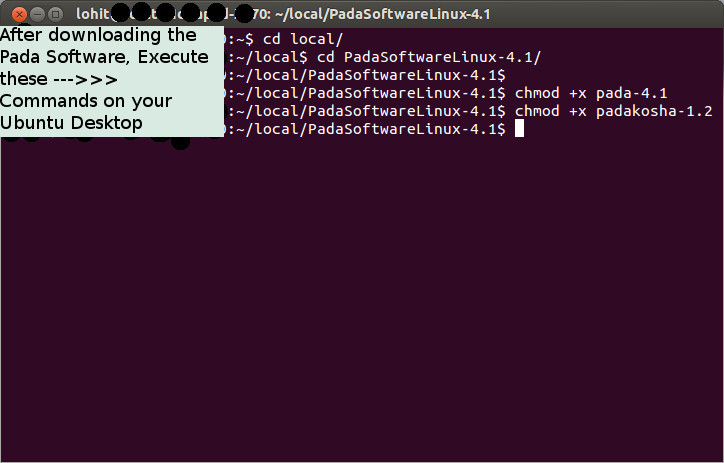
3. Open a terminal window, i.e command prompt (Shortcut : CTRL + ALT + T)
In the terminal,
3.1. Change the working directory to the pada folder, like :
“cd PadaSoftwareLinux-4.1”
3.2. chmod +x pada-4.1
3.3. chmod +x padakosha-1.2
3.4. Exit
(Please check the screenshot right side. Note: the path “local/PadaSoftwareLinux-4.1” may be different for your computer)
==============================
Approach 2:
Just follow these screenshots and it should be done.
step (1) step (2)
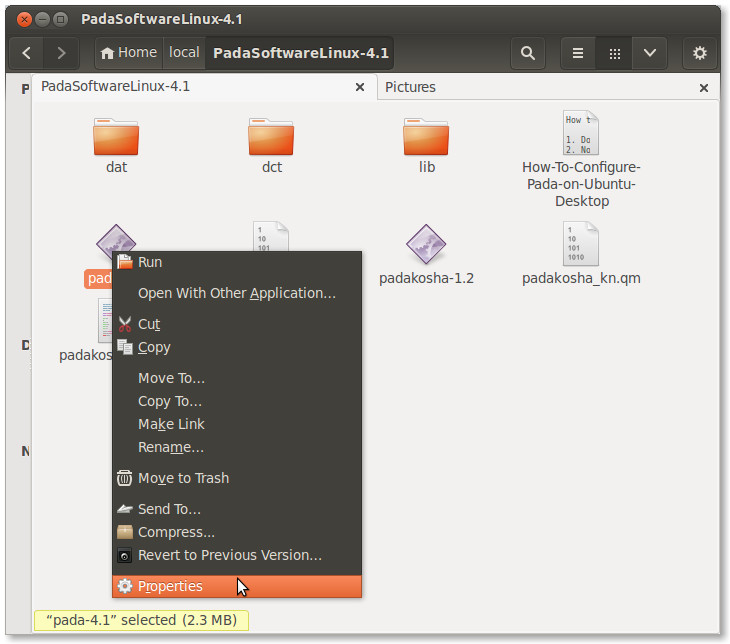
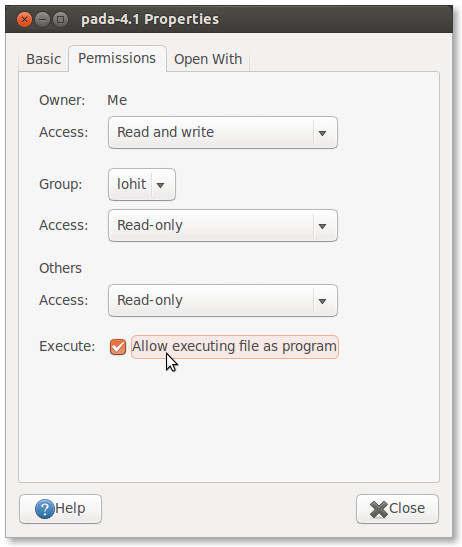
4. Now double clicking on pada-4.1 should launch Pada
5. double clicking onPadaKosha-1.2 should launch PadaKosha
==================================================================
How to create shortcuts to Pada on your Ubuntu Desktop:
ಲೀನಕ್ಸ್ ನಲ್ಲಿ ಪದ ೪.೧ ಕ್ಕೆ Desktop ಮೇಲೆ Shortcut
ಮಾಡಿಕೊಳ್ಳುವುದು ಹೇಗೆ :
ಅದಕ್ಕೆ ಈ ರೀತಿ ಮಾಡಿರಿ.
1. Right click on “pada-4.1”
2. In the context mnu, select “Make Link”
3. A shortcut is created in the existing folder. like “Link to pada-4-1”
4. Cut “Link to pada-4-1” and paste on Desktop.
5. Double click on Link to “pada-4-1” on Desktop.
6. Pada should be launched.
Same steps apply to “Padakosha” also: 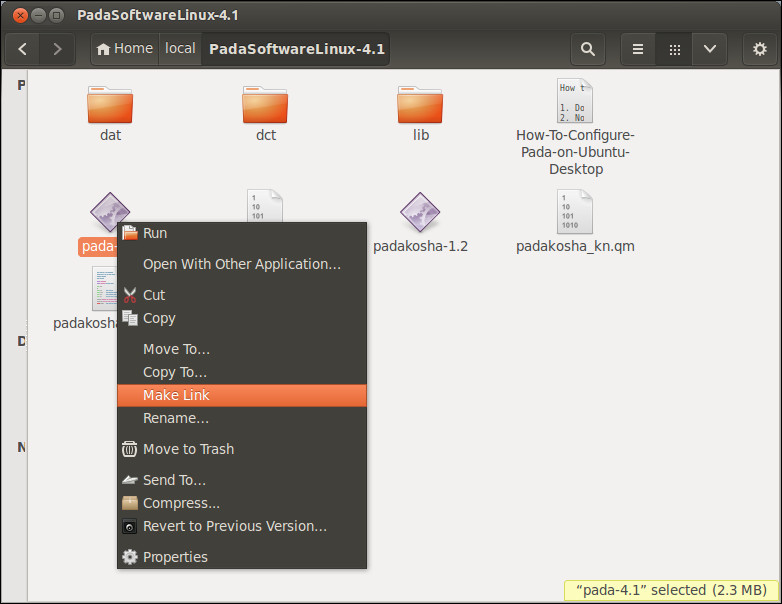
1. Right click on “pada-4.1”
2. In the context mnu, select “Make Link”
3. A shortcut is created in the existing folder. like “Link to padakosha-1.2”
4. Cut “Link to padakosha-1.2” and paste on Desktop.
5. Double click on “Link to padakosha-1.2” on Desktop.
6. PadaKosha should be launched now.
–
Feel free to ask if you need any further details.
 Loading tweets...
6 pings